Translated from German. We write our content in German.Show original
Google Maps offline maps: Satnav even without mobile reception

By Laura & Tobi ·
If you use Google Maps offline maps, you can navigate even without the internet. We tested it in Namibia.
If you have ever been off the beaten track, you have probably thought about buying a GPS device. After all, you can then find your way in the wild without a mobile phone and internet. What many people do not know, though, is that you can also navigate with the Google Maps app without the internet and without mobile reception.
For us it even worked brilliantly in Namibia this year. The so-called Google Maps offline maps are stored on your device and help you navigate. Either with GPS reception or manually without it – just like a paper map. We explain how it works in this article.
Download the Google Maps app
Whether you have an Android smartphone, iPhone or even a tablet: download the Google Maps app from the relevant app store (Android: Play Store, iOS: App Store) if you do not already have it on your device. Once the download has finished, open the app.
Select the section for Google Maps offline maps
Let us take the example that you want to download areas in Namibia. Either navigate there manually on the map or enter "Namibia" in the search. Then click on the menu (three lines on top of each other) at the top left and select "Offline maps". Now click right at the bottom on "Custom map" until you get to the screen "Download this map?".
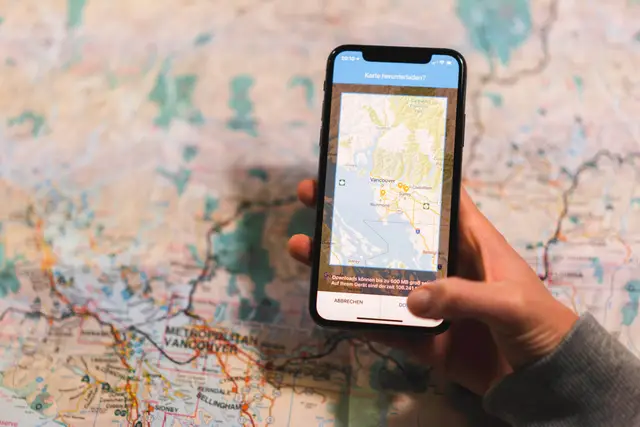
You can now move the map section or zoom further in or out. Unfortunately there is a maximum size for Google Maps offline maps, which you will notice as soon as you zoom further out. But do not worry, you can store several offline maps on your device and use them to download larger sections or even entire countries.
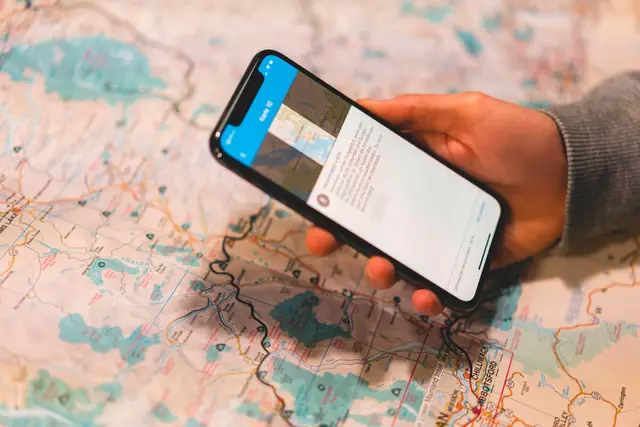
As soon as you have chosen the section, you will see at the bottom how much storage space the map is expected to take up on your smartphone or tablet. It also shows how much space you generally still have free on your smartphone or tablet. If everything looks fine, you can start downloading the Google Maps offline maps by tapping "Download".
You will now see a message that the map is being downloaded. Depending on your Wi-Fi speed, this may take a while. Right at the bottom of the screen you can see what percentage of the map has already been stored on your smartphone or tablet.
Rename or delete Google Maps offline maps
If you have many maps stored on your device, you can rename them at the top right. To do this, click on the pencil and give the map a name. Click "Save" to assign the new name to the map.
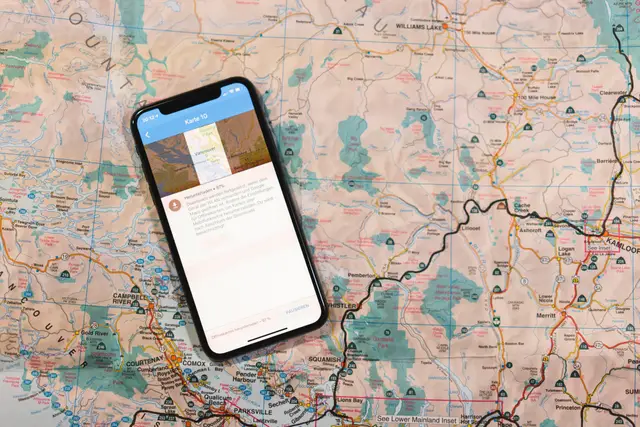
Once the map has been downloaded successfully, you can also remove it from your device by tapping "Delete". This makes particular sense if, for example, you need more space for photos. Otherwise Google Maps automatically deletes the maps from your device again after 30 days. After a holiday, it is all too easy to forget to remove the maps and then wonder why your device is almost full.
Navigating with Google Maps offline maps
The maps are now on your device. If you now put your smartphone or tablet into flight mode, you should be able to navigate between two points in your selected, downloaded section. So search for a town and choose another town in that section as your destination. When you are done, start the navigation. Google should now start giving you directions. Pretty cool, right?
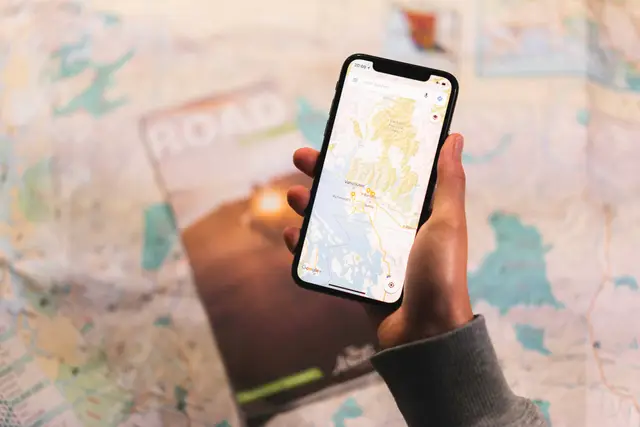
Even though Google Maps offline maps are really practical and have helped us out in many situations, we still recommend that you take a paper map with you. On the one hand, your phone can always get lost or pack up and on the other hand at some point the battery will be empty – and a plug socket is not always within reach. A paper map can become very important.
We can also share one anecdote for navigating by offline map: when we were in Saxon Switzerland, we suddenly no longer had GPS reception and it was getting noticeably darker. In the end we wandered for hours in the dark, over hill and dale right through the forest, until we found a spot where we could get our bearings again. Phew, we were really stressed out at the time. Today we can just laugh about it :-)



Plan your trip in the app.
Save activities and places to stay, put your route together and take everything with you offline.